
Brought to you by…Deel

For finance leaders, managing international payroll and compliance requires expertise. Our ‘Guide to EOR for Startups’ offers a detailed look at efficient global payroll management & compliance. This guide will help you:
Manage cross-border payroll easily
Navigate tax implications across jurisdictions
Reduce financial risks associated with global growth
Take control of your financial strategy today.
Rebuilding Finance with AI
AI has dramatically changed how my team operates and we are still early (lots more work to do)…
I built an AI agent that turned a 2-hour task for my accounting team into 5 minutes. And we used this same AI flow across many similar processes (which cut a full day off of the month-end close).
I just launched a separate newsletter (CFOpilot) to write about everything I am learning and building with AI.
*The below post was shared at CFOpilot a few days ago. I got a ton of feedback on how valuable it was, so I wanted to share it here as well.*
My 6-Step Process to Building an Accounting AI Agent
I built our first AI agent to tackle accounting reconciliations (focused on prepaids initially).
Here is the process I ended up with…
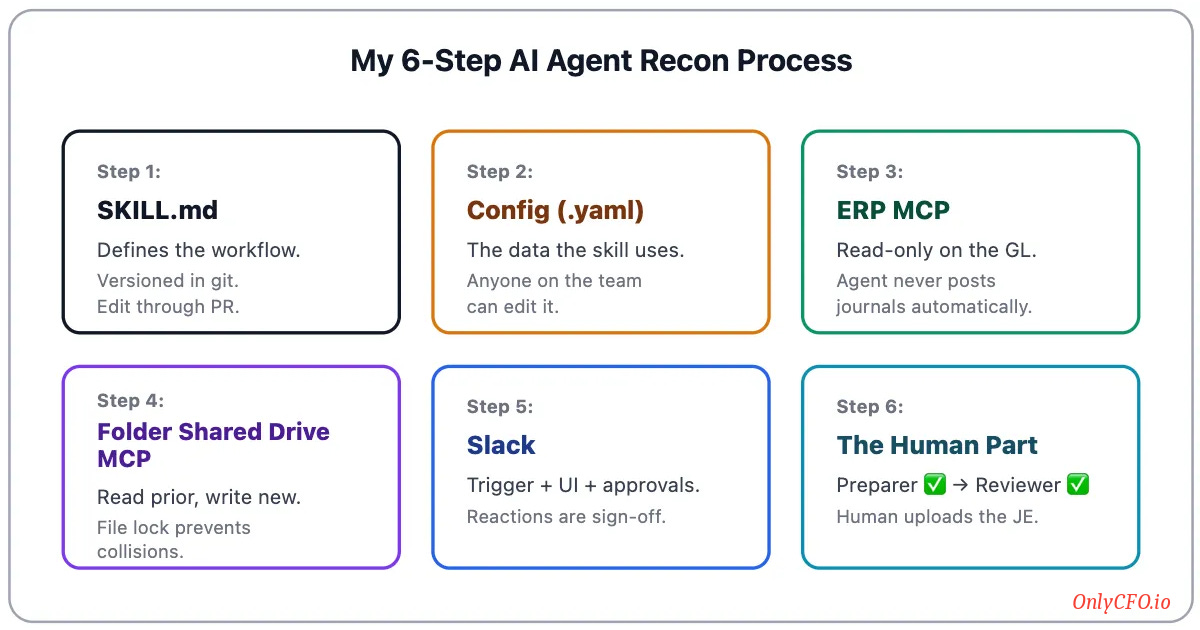
An “agent” is essentially the worker that navigates all of these systems and steps to complete a task.
Step 1: The “Skill” Itself
Skill: A self-contained workflow an agent runs. A system prompt that defines what to do. MCP connectors to the systems it needs. A trigger that kicks it off. A config that drives the behavior. You build it once and it runs forever.
Every skill has a SKILL.md file. The skill defines the inputs, workflows, rules, output, edge cases, etc. My prepaid skill is ~200 lines.
You’re not writing a prompt every time you run it. You’re writing it once. And then updating it if/when something changes.
Step 2: The Config File
My config (YAML file) contains:
Prepaid GL account codes
Vendor → coding map
Materiality threshold
Partial-month convention
Routing: who gets pinged, in which channel
When something changes, you edit the config (not the skill).
This is one thing I was doing wrong before. I was dumping everything into a prompt (or a skill). Every time something changed, I would have to update the skill and re-do it.
Having a separate config file with the stuff that might change breaks things up so it’s easier to maintain. It’s like why you don’t put your entire model and all the components in one giant tab or make Excel model formulas huge.
Putting everything in one skill file also makes it so you can’t reuse your skill in other recons, entities, etc because it contains the exact detail for one prepaid recon process. To make it scalable/reusable, you separate out those details into the config file. Then you can reuse the skill and just update the config file.
Step 3: MCP Connector to the ERP
MCP (Model Context Protocol): A standard way for an AI agent to plug into your software systems (Deel, NetSuite, Google Drive, etc) so it can read data, do work, and take actions in those systems on your behalf.
A surprisingly large number of companies I talk to still use AI like a simple chatbot.
The biggest unlock comes from giving AI visibility to everything…Only then can AI agents perform meaningful work end-to-end. The primary way to do that is via MCP connectors.
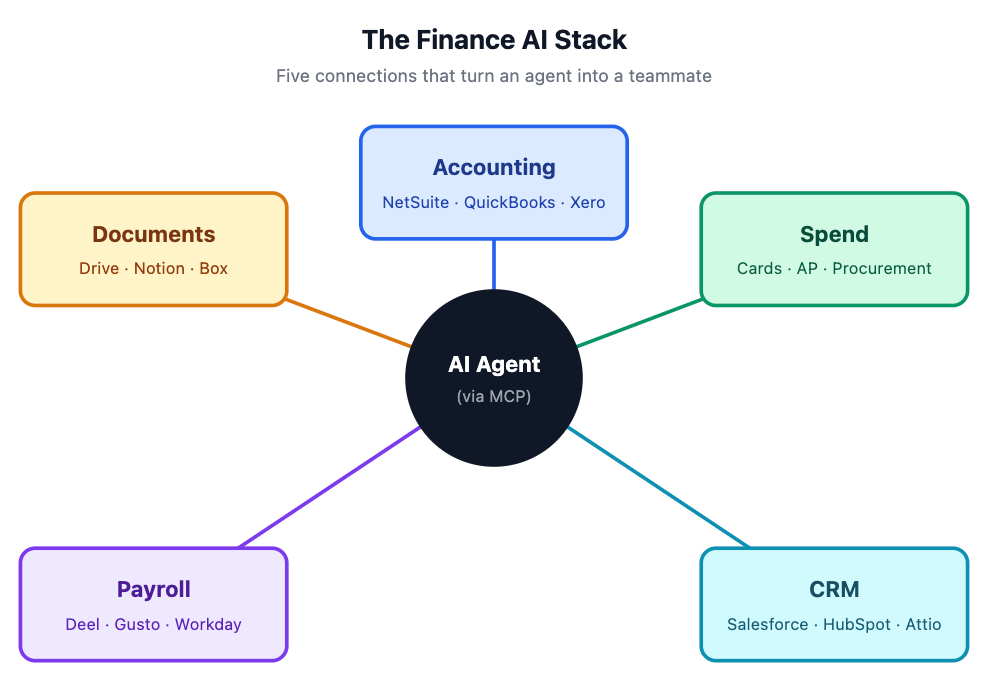
If AI is not connected to all your systems, then it lacks context, so it will require a lot more manual human effort for each handoff and coordination. AI needs to “see” all the context and have the ability to take actions (even if read-only) to be really useful.
My prepaid agent queries my ERP GL directly via the MCP. No CSV exports/imports.
The skill I created reads the config file to know which prepaid accounts to pull. The agent calls the ERP connector and pulls current period activity for those GL accounts.
If you don’t have an MCP connector to your ERP, that’s the first thing to fix.
Step 4: MCP Connector to the Shared Drive
The workpapers don’t live in your ERP. They live in GDrive, Box, SharePoint, etc.
The skill needs to:
Read last month’s workpaper
Write the new workpaper to a new file
Enable the AI agent to create and edit the new prepaid workpaper
An MCP connector for the shared drive handles this.
Step 5: Slack Is the Trigger and the UI
Slack is the UI for my AI agent.
Slash command: I kick off the recon by typing “/prepaid April”. Or I just chat in Claude “I want to kick off the prepaid recon for April” and it will find it.
The agent will find the prior workpaper (location is defined in the config file), copy that workpaper to the current month-end close folder. It will then use that as the starting point for adding new prepaids, adding a new month of amortization, etc. The agent is trained just like a human would be…it brings over Excel formulas just like the prior month so the amortization calculates correctly.
When the agent finishes, it posts a digest with the workpaper, the JE CSV, and a tag for the preparer.
Below is an AI-generated Slack example of what I see (done with AI so you don’t see my actual Slack…)
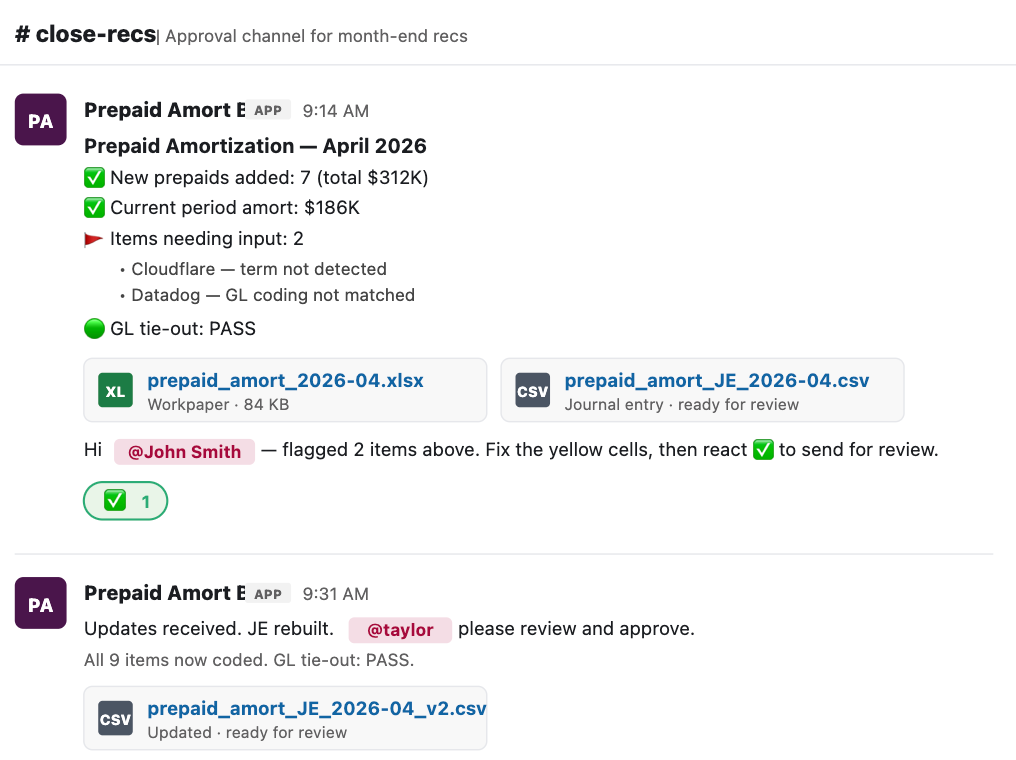
If the AI agent flags something I need to fix, then I’ll do one of two things:
Open up the workpaper and fix the errors/flags (e.g., add the Cloudflare term from the example above). Then I add a ✅ to the Slack thread, which signals to the agent that I am done so it re-reads the files to see if I fixed the flags. It updates the files and posts a follow-up message for the reviewer.
If the issue will be repeating, then I will update the skill or config files to automatically fix it going forward.
Step 6: The Human Part
The skill doesn’t auto-post the JE. We still have a human preparer and reviewer.
Human preparer: Person managing the agent and fixing the flags/errors that come up. They also do a review of the agent’s work.
Human reviewer: This is the same process that the reviewer has always performed, and is an important control in accounting.
Essentially, we have turned both of these humans into reviewers. The preparer does the first pass and makes sure the agent did everything properly and then the normal reviewer acts as the final control and sign-off.
But we have even changed the reviewer’s process as well…more on that to come in future CFOpilot articles.
In Summary…
What previously took lots of manual steps (copy workpaper to new location, open up ERP, download detail, update workpaper, create JE upload file, etc) is now 90%+ completed by our AI agent.
From ~2 hours of human work to ~5 minutes.
It did take longer the first time I ran the reconciliation, but then the team took it and kept iterating and improving the skill and the config to automate more and more. Eventually, you get some major time savings.
And then repeat that across your other recons and you will shave off days from your month-end close…Smaller accounting teams, faster close, fewer errors, etc
Love this use case, and I’m curious how you’re thinking about mitigating the lethal trifecta here.
Untrusted input (vendor names, memo fields, invoice text all originate outside the org), sensitive data (GL detail, materiality, JE logic), and external action (writes workpapers, posts to Slack, drafts JEs). All three in one agent puts it at risk for data exfiltration.
Anyone who can submit an invoice can potentially get instructions into a memo or description field the agent reads. And even without an attacker, the agent might get confused or try to be helpful in an unintended way and leak data.
The human reviewer is a good control, but they’re checking output after the agent has already taken action. Subtle manipulation (wrong account, plausible-but-wrong vendor coding) might be hard for a human to catch.
okay this is the kind of post that makes us want to go rebuild our internal stack tonight. thank you for actually writing out the config-vs-skill split